
AI Rendering — Compositing a Room Photo with Your Drawing
This feature overlays your changho drawing on a site photo (the background) and has AI composite it into a realistic installed look. It works as room photo + lattice drawing = AI rendering result, and everything happens in the Rendering tab of the studio's left-hand menu. All seven engines work the same way.
The Rendering Tab
Click Rendering in the left-hand menu to open the panel. Work through it from top to bottom.
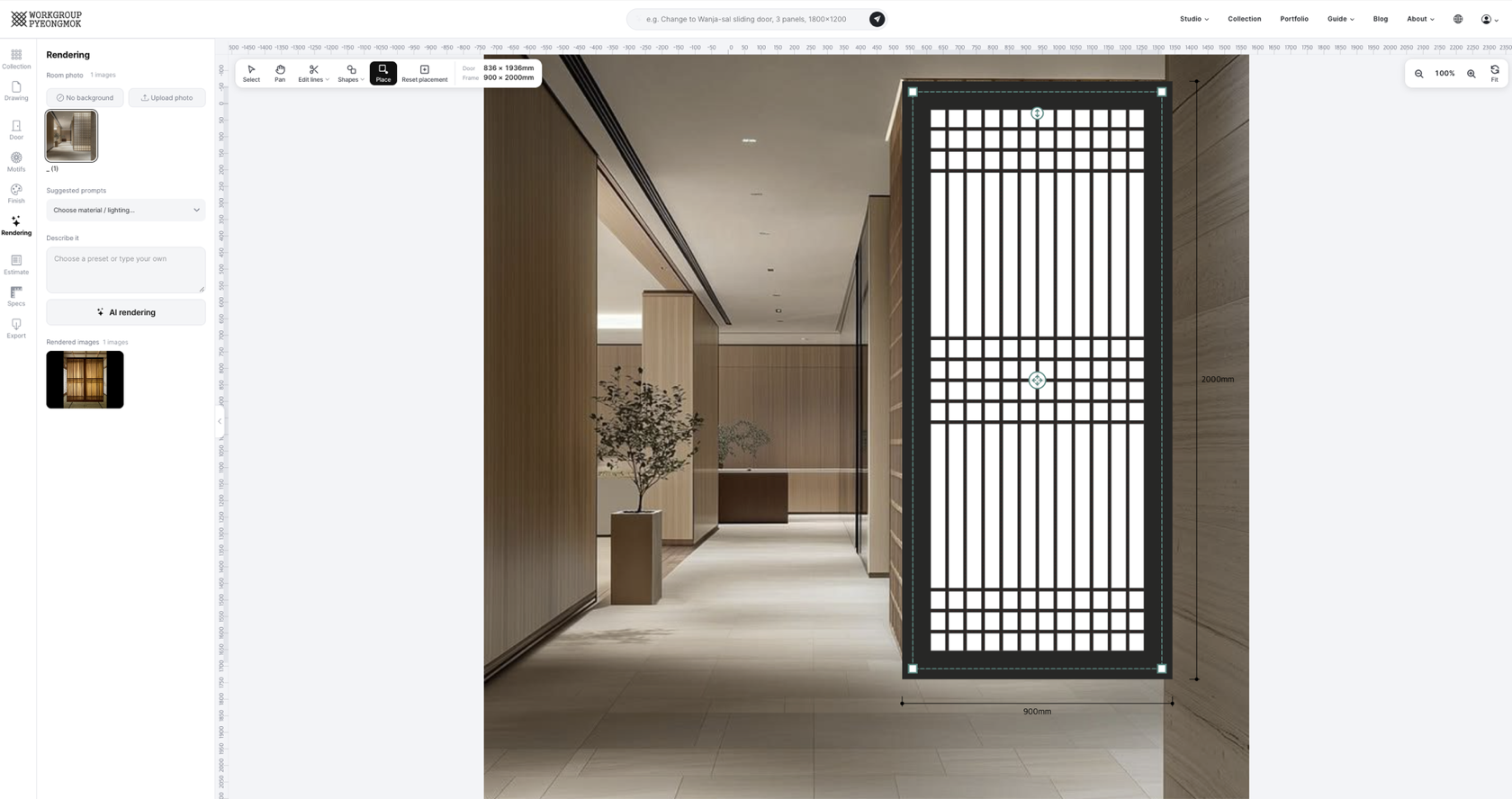
Step by Step
① Upload a room photo
- Click the Rendering tab in the left-hand menu.
-
Click Upload photo on the Room photo heading and choose an image file.
You can upload several at once. - Uploaded photos appear in the list. Click one and it is applied as the canvas background right away; the selected photo gets a border.
② Fit the drawing to the photo
Set the dimensions and lattice in the Door tab and the colors in the Finish tab. The drawing previews live on top of the photo, so you can judge on the spot which proportions and pattern suit the space.
Then turn on Place in the toolbar above the canvas and drag the door's four corner handles onto the door opening in the photo. The door is warped to match the perspective, so you get a natural result even from a photo taken at an angle. See Canvas Toolbar for details.
③ Write a prompt
Pick a mood from Suggested prompts, or write the mood you want in a line or two under Describe it. The AI uses this text to composite texture, lighting and atmosphere.
| Good prompt examples | Expected effect |
|---|---|
| Aged oak grain, lacquer finish, white hanji paper | Emphasizes wood texture and a hanji backdrop |
| Hanok café interior, warm daylight | A bright, warm sense of space |
| Apartment living room entry door, light wood floor, afternoon sun | A mood that suits a modern home |
| Night, soft indirect lighting, atmospheric restaurant | An evening mood |
| Modern minimal, white tones, large windows, city view | A clean, contemporary atmosphere |
For example: "hanok café" (space) + "oak grain" (material) + "daytime natural light" (lighting)
④ Run the render
- Click the AI rendering button. (You need to be logged in.)
- "AI rendering…" appears over the canvas. It usually takes 30–90 seconds.
- When it finishes, the result window opens automatically. Save it with Download or close the window.
- The result is added to Rendered images at the bottom of the panel automatically.
Managing Rendered Images
Rendered images shows every result you've made. Click an image to view it large in the result window; use the button at its top right to download it, or to delete it.
Rendered images are stored on the server, so they look the same from any device or browser signed in to the same account.
Note that each account can keep at most 300 renders. Beyond that limit, new renders are refused with a notice — so clear out old ones with , or download the ones you need with beforehand.
The Renders Tab in My Drawings
The Renders tab of the My Drawings page in the top navigation gathers the rendering results from every engine. The top shows stored count / 300, and a notice appears when it's full.
| Action | How |
|---|---|
| View large · download | Click an image to open the detail window, then use Download. |
| Share | The button on the image → copy the link or share to KakaoTalk, Facebook or X |
| Delete | The button on the image, or Delete in the detail window |
Managing Room Photos
| Action | How |
|---|---|
| Add a photo | Upload photo on the Room photo heading |
| Switch photos | Click another photo in the list — the canvas background changes right away. |
| View the drawing without a background | Click No background on the heading |
| Delete a photo | Click the button on the photo |